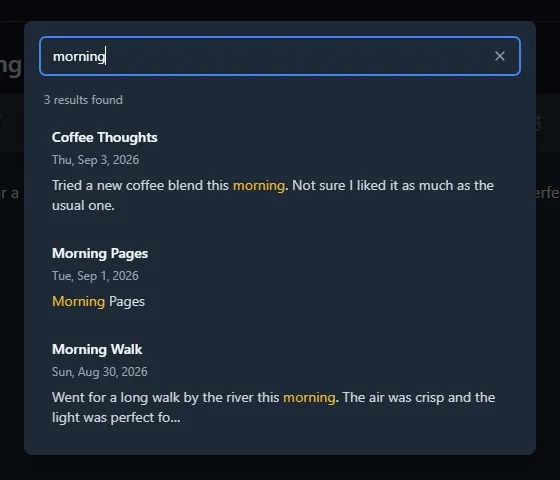
Mini Diarium includes full-text search across every entry in the current journal. Open the search overlay from the magnifier button in the header, or press Ctrl+F (Cmd+F on macOS). Type at least three characters and matching entries appear, newest first, with the matching text highlighted in a short snippet. Nothing is searched until the query reaches that minimum — no results appear for one or two characters. For Chinese and Japanese text, the minimum drops to a single character, since many complete words in those languages are one or two characters long.
Clicking a result jumps straight to that entry in the editor, even on a day that holds several entries.
The overlay displays the total number of results found ("12 results found"). When results exceed 200, a truncation notice appears: "Showing first 200 — refine your query to see more". This cap keeps search responsive on large journals; refining with additional keywords narrows results.
Navigate results with your keyboard: ArrowDown and ArrowUp move between results, and pressing ArrowDown from the search input focuses the first result.
How Search Works Without Compromising Encryption
Mini Diarium stores every entry encrypted at rest with AES-256-GCM. Search does not keep a separate plaintext index on disk, because that would expose your writing to anyone with access to the file.
Instead, when you run a search the app decrypts your entries in memory, scans them, and discards everything when it is done. Nothing searchable is ever written to disk, and the search never makes a network request. It is as private as reading the entries yourself.
Search is case- and accent-insensitive: typing "cafe" will match "Café", and "RUST" will match "rust". Multiple words use AND semantics, so every word must appear in the title or body of an entry for it to match.
Other Ways to Find Entries
Search is fastest when you remember specific words. When you only remember roughly when you wrote something, these alternatives help:
- Calendar in the sidebar, for browsing by date.
- Go to Date dialog with Ctrl+G (Cmd+G on macOS), to jump to a known date.
- Timeline view (toggled from the header), a chronological list of every entry with an optional one-line preview (see Preferences → Writing → Timeline).
- Export to Markdown or JSON and use your operating system's file search. Exported files are not encrypted, so do this only on a trusted device.