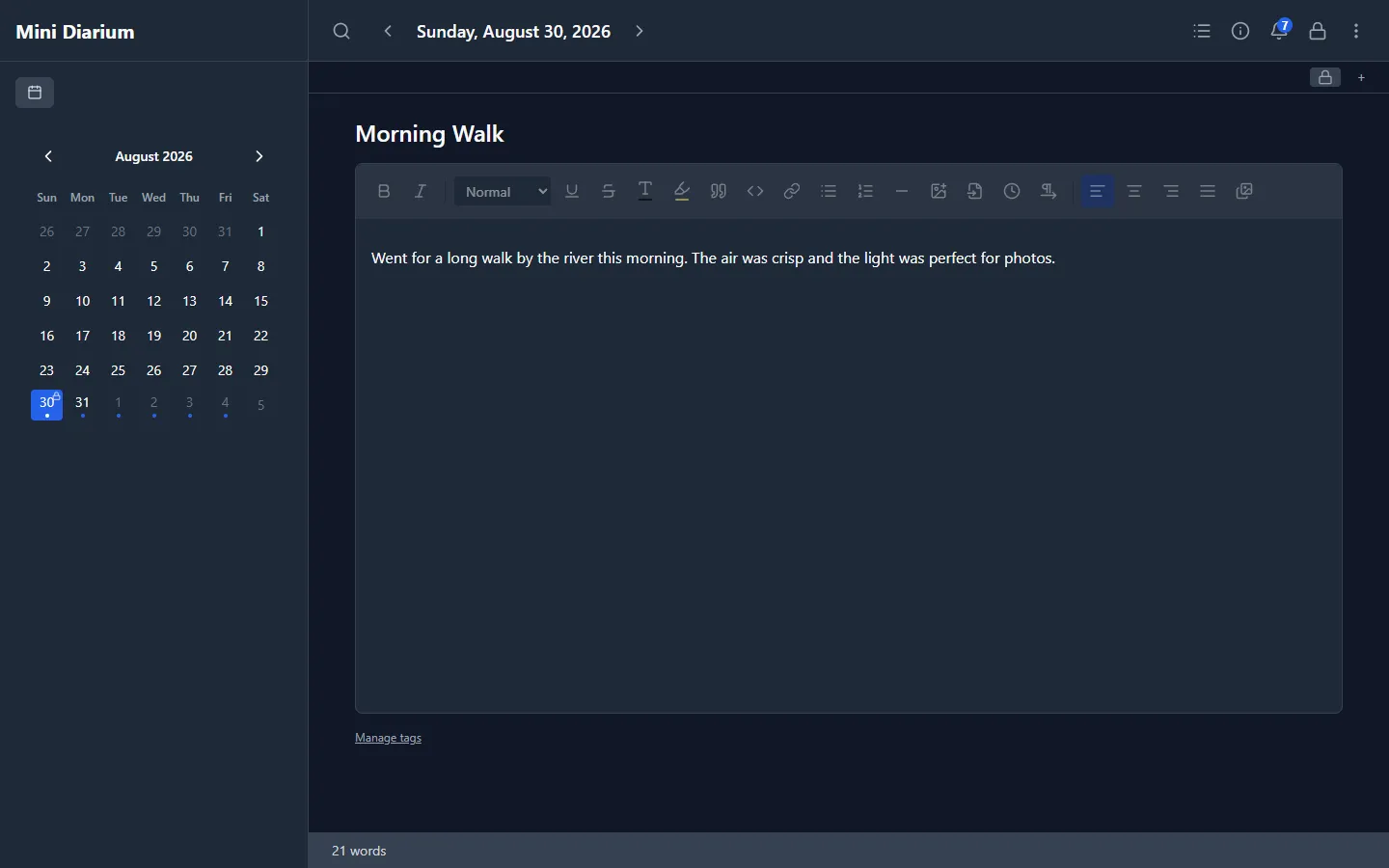
The sidebar shows a monthly calendar. Days that have at least one entry are marked with a dot indicator. Click any date to jump to that day's entries.
You can narrow the dot indicators to a specific tag by clicking a tag chip's name on any entry. See Browsing entries by tag for details.
Days that contain a locked entry also show a small lock indicator on their calendar cell, so you can see which days hold a locked entry before opening them.
Keyboard Navigation
Mini Diarium supports keyboard shortcuts for all navigation actions. On macOS, use Cmd instead of Ctrl.
| Action | Shortcut |
|---|---|
| Previous day with an entry | Ctrl+[ |
| Next day with an entry | Ctrl+] |
| Go to today | Ctrl+T |
| Go to a specific date | Ctrl+G |
| Previous month | Ctrl+Shift+[ |
| Next month | Ctrl+Shift+] |
| Open preferences | Ctrl+, |
Ctrl+[ and Ctrl+] skip days without entries. While a tag filter is active, they only visit days that have an entry with that tag. At the first or last entry they do nothing.
Go to Date
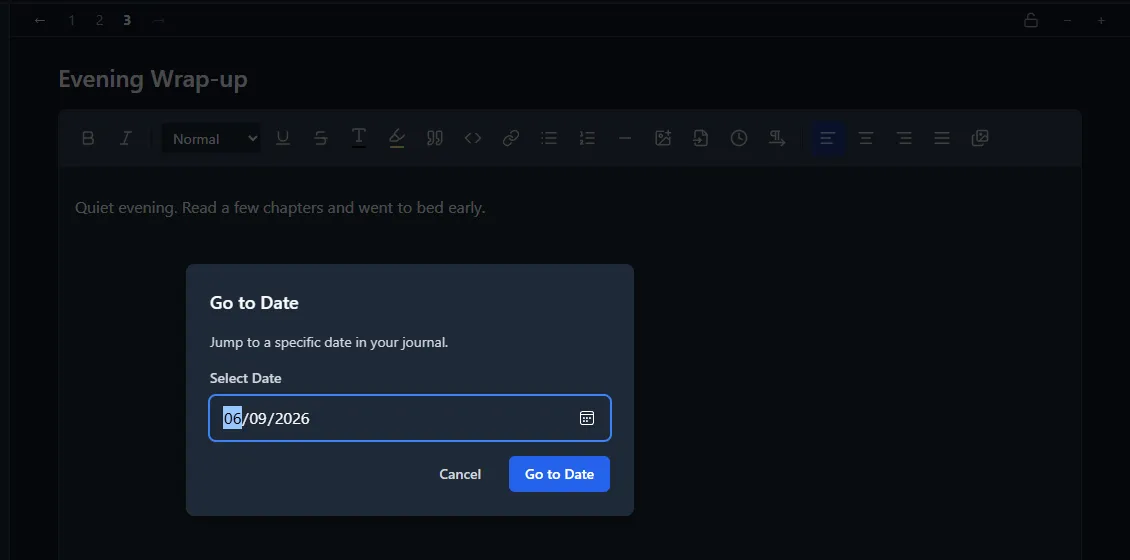
Press Ctrl+G to open the date picker and jump directly to any date. This is the fastest way to navigate to a specific day without scrolling through the calendar month by month. You can also click the date title in the header to open the same date picker.
Header Day Controls
The header shows the current day's date, flanked by a ◀ previous-day button and a ▶ next-day button. Click them to step one calendar day at a time. Unlike Ctrl+[ and Ctrl+], they do not skip empty days. When future entries are disabled, the next-day button stops at today. Clicking the date title itself opens the Go to Date picker.
Month Navigation
Click the ‹ and › arrows on the calendar header to move to the previous or next month. The keyboard shortcuts Ctrl+Shift+[ and Ctrl+Shift+] do the same.