Click the ⋮ menu in the header and select Import....
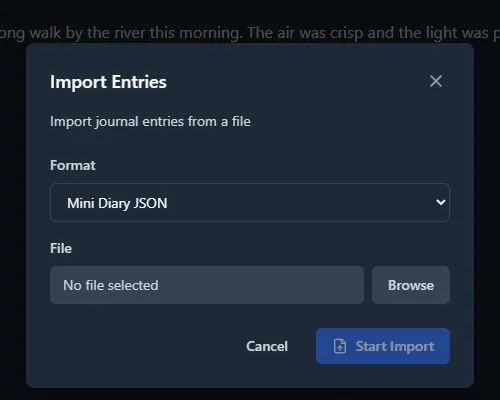
Built-In Import Formats
Mini Diarium can import entries from several popular journaling apps:
| Format | Source App | How to Export |
|---|---|---|
| Mini Diary JSON | Mini Diary | Use the built-in export feature in Mini Diary |
| Day One JSON | Day One | Use "Export → JSON" in Day One |
| Day One TXT | Day One | Use the plain-text export option in Day One |
| jrnl JSON | jrnl | Run jrnl --export json > export.json |
How Imports Work
Imports are additive. If an imported entry falls on a date that already has entries in Mini Diarium, the imported content is added as an additional entry for that date rather than merging or replacing existing content.
This means you can safely import without worrying about overwriting your existing writing.
Images embedded in the import file as data: images are stored in your journal's encrypted image store. Two kinds of reference are removed on import, because they name files in a different journal: inline attachment references and stored image references (image-id:// links). The rest of the entry is imported.
Migrating from Mini Diary
Mini Diary users can migrate all their entries to Mini Diarium:
- Open Mini Diary and export your journal as JSON.
- Open Mini Diarium and go to Journal → Import....
- Select Mini Diary JSON from the format dropdown.
- Choose the exported file.
All your entries will be imported with their original dates preserved.
Custom Import Formats via Plugins
If your source application is not in the built-in list, you can write a custom Rhai import plugin. See the Plugins section for details.